

Download AutoScreenShot – Free, Secure Screen Capture Tool for Windows
Why AutoScreenShot Stands Out Among Free Screen Capture Tools
In the world of digital productivity, capturing your screen quickly and efficiently is essential. Whether you're creating tutorials, documenting software bugs, or monitoring system activity, having a reliable screen capture tool is a must. AutoScreenShot is a lightweight, free software designed specifically for Windows users who need automatic, scheduled screenshots without the clutter of complex features. Since its debut in 2006, AutoScreenShot has earned a loyal following, with over 19,000 downloads and continued use across countries like Hong Kong, Brazil, and Serbia. Despite its age, the tool remains functional and secure for older systems, particularly those running Windows 98 and earlier versions.
What sets AutoScreenShot apart is its simplicity and automation. Unlike many modern screen capture apps that bombard users with options, AutoScreenShot focuses on one core function: automatic screenshot capture. You can set it to take screenshots at regular intervals—every 10 seconds, 1 minute, or any custom time frame—making it ideal for time-lapse documentation, monitoring web pages, or capturing gameplay sessions. The software runs quietly in the background, consuming minimal system resources, which is perfect for older or low-spec machines. It’s also worth noting that the tool is completely free with no hidden costs, ads, or in-app purchases—just straightforward functionality.
For users who value privacy and security, AutoScreenShot is a safe choice. It doesn’t require internet access or account registration, ensuring your captured images remain private. The software stores screenshots locally in a designated folder, giving you full control over your files. Whether you're a student, teacher, or remote worker, AutoScreenShot offers a no-frills solution that just works. With a clean interface and minimal setup, it’s one of the most underrated screen capture tools available for Windows.
Key Features and How to Use AutoScreenShot Effectively
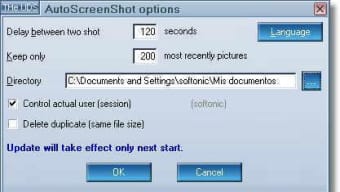
AutoScreenShot’s strength lies in its focused feature set. Despite being a simple tool, it delivers essential functionality that’s both powerful and easy to use. The primary feature is automatic screenshot capture, which allows users to schedule captures at precise intervals. Whether you want to document a slow-loading website, track changes in a dashboard, or record a long video tutorial, this automation saves time and ensures no moment is missed.
Another notable feature is customizable save location. You can choose where your screenshots are stored—whether on your desktop, a specific folder, or an external drive. This helps maintain organization and prevents clutter in default directories. Additionally, AutoScreenShot supports file naming conventions, allowing you to label screenshots with timestamps, serial numbers, or custom prefixes. This is incredibly useful for sorting and referencing later.
For advanced users, the tool offers capture area selection. You can choose to capture the entire screen, a specific window, or a custom region. This flexibility ensures you only capture what’s relevant, reducing file size and improving efficiency. The software also includes a pause/resume function, so you can temporarily stop captures without losing your settings. This is helpful during meetings or when you need to step away from your computer.
To use AutoScreenShot effectively, start by downloading the latest version (1.0.3.1) from a trusted source. Once installed, launch the app and set your preferred interval in the settings. Choose your capture mode, select the save location, and hit “Start.” The tool will begin capturing automatically. For best results, avoid running too many resource-heavy applications simultaneously to ensure smooth performance. With minimal setup and maximum utility, AutoScreenShot is a reliable companion for any screen capture need.
Compatibility, Installation, and System Requirements
AutoScreenShot is designed for legacy Windows systems, making it a rare gem for users still running older operating systems. It officially supports Windows 98 and previous versions, including Windows ME, Windows NT, and early builds of Windows 2000. This makes it an excellent choice for users working on outdated hardware or in environments where upgrading the OS isn’t an option.
Despite its age, the software remains lightweight and efficient. It requires minimal disk space—far less than most modern design and photography tools—making it ideal for machines with limited storage. The installation process is straightforward: simply download the .exe file, run it, and follow the on-screen prompts. No complex configurations or system changes are needed. Once installed, AutoScreenShot runs in the background with a small icon in the system tray, allowing quick access to settings.
For users on newer systems like Windows 10 or 11, compatibility may be limited. While some users report success running AutoScreenShot via compatibility mode, it’s not officially supported. If you're on a modern OS, consider alternatives like Greenshot or ShareX, which offer similar automation with better compatibility. However, for those on older systems or seeking a no-nonsense tool with zero overhead, AutoScreenShot remains a solid option.
Security is a major plus. The software is open-source and has no known malware or tracking mechanisms. It doesn’t require admin rights to install, and it doesn’t modify system files.
This makes it safe for use in corporate or educational environments where software restrictions are common. Regular updates (the last one in 2006) may be a concern for some, but the stable codebase ensures reliability. For users who prioritize stability over cutting-edge features, this is a strong selling point.
Pros, Cons, and Frequently Asked Questions
Pros
- Completely free with no ads or in-app purchases.
- Lightweight and fast, ideal for older systems.
- Automatic scheduling for unattended captures.
- Customizable save location and file naming.
- Minimal system impact and runs silently in the background.
Cons
- Only supports older Windows versions (98 and earlier).
- No modern OS compatibility (Windows 10/11 not officially supported).
- No update since 2006 – may lack security patches.
- No advanced editing tools – only capture, no markup or annotation.
- Outdated interface – lacks modern design elements.
Frequently Asked Questions (FAQ)
Is AutoScreenShot safe to download and use?
Yes, AutoScreenShot is considered safe. It’s a lightweight, open-source tool with no known malware or tracking. It doesn’t require internet access and doesn’t modify system files. However, since it hasn’t been updated since 2006, use it on trusted, isolated systems if possible.
Can I use AutoScreenShot on Windows 10 or 11?
AutoScreenShot is not officially supported on Windows 10 or 11. While some users have managed to run it via compatibility mode, results vary. For newer systems, consider modern alternatives like Greenshot or ShareX.
How do I change the screenshot interval?
Open AutoScreenShot, go to the settings menu, and set your desired time interval (e.g., 10 seconds, 1 minute). The tool will begin capturing automatically based on your selection.
Can I capture only a specific part of the screen?
Yes, AutoScreenShot allows you to capture the entire screen, a specific window, or a custom region. Select your preferred capture mode in the settings before starting.
Does AutoScreenShot support image editing?
No, AutoScreenShot is purely a capture tool. It does not include editing features like cropping, annotations, or filters. You’ll need to use a separate image editor for post-processing.
Final Verdict: Is AutoScreenShot Worth Downloading?
AutoScreenShot is a niche but valuable tool for users on older Windows systems who need a reliable, automated screenshot solution. While it lacks modern features and hasn’t been updated in nearly two decades, its simplicity, speed, and zero cost make it a standout choice for specific use cases. If you’re working on a legacy machine, creating time-lapse documentation, or simply want a no-frills screen capture app, AutoScreenShot delivers exactly what it promises.
However, if you’re using Windows 10 or 11, you’ll likely want to explore more modern alternatives. That said, for those who value stability over novelty, AutoScreenShot remains a secure, lightweight, and effective tool. Its minimal footprint and lack of bloat make it a rare gem in today’s crowded software landscape.
Download AutoScreenShot today and experience hassle-free, automatic screen capture—perfect for students, educators, and professionals working with older systems. It’s free, secure, and ready to use in minutes.







